
Install MirrorMyCam in three steps
Free, no account, about a minute. It works in Chrome and Microsoft Edge on Windows, Mac, Linux and ChromeOS.
-
Add it to Chrome or Edge
The buttons below open MirrorMyCam in the Chrome Web Store and in Microsoft Edge Add-ons. In Chrome, click Add to Chrome; in Edge, click Get. Then click Add extension in the box that appears.
-
Pin it to the toolbar
Click the puzzle icon at the top right of the browser, then the pin next to MirrorMyCam. Its icon now stays in the toolbar, one click away in every call.
-
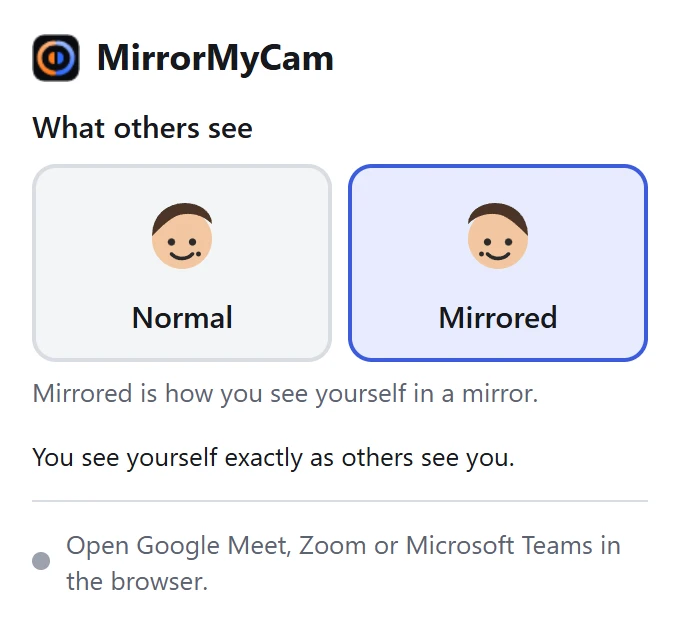
Choose how you look
Open Google Meet, Zoom or Microsoft Teams in the browser and click the MirrorMyCam icon. Pick what others see: Normal or Mirrored. You see exactly that yourself, and your choice is remembered for every call. In Zoom and Teams, also turn off the app's own Mirror my video. If a call was already open, reload that tab once.

The free MirrorMyCam page on chromewebstore.google.com.
Using Edge? The free MirrorMyCam page on Microsoft Edge Add-ons.
What it asks for
- Google Meet, Zoom and Microsoft Teams pages. It runs only there, to flip your camera picture inside the call.
- Storage. To remember your choice and when you installed it.
- Active tab. So its menu can tell whether the open tab is a call page.
- Nothing else. No account, no tracking, and your video is processed on your computer: MirrorMyCam never receives it. Privacy policy
Using the Zoom or Teams desktop app?
The extension works in the browser versions of the calls. A Windows app for the desktop apps is on the way. Until then, join the call in Chrome or Edge: in Zoom choose Join from your browser, in Teams choose Continue on this browser.
Want to see it first? Try the call demo with your own camera